- Open Google AI Studio.
- Sign in with your Google account.
- Open the API key page.
- Create a new key for Gemini API.
- Copy the key and keep it private.
PowerToys Command Palette Extension
Gemini Run setup manual
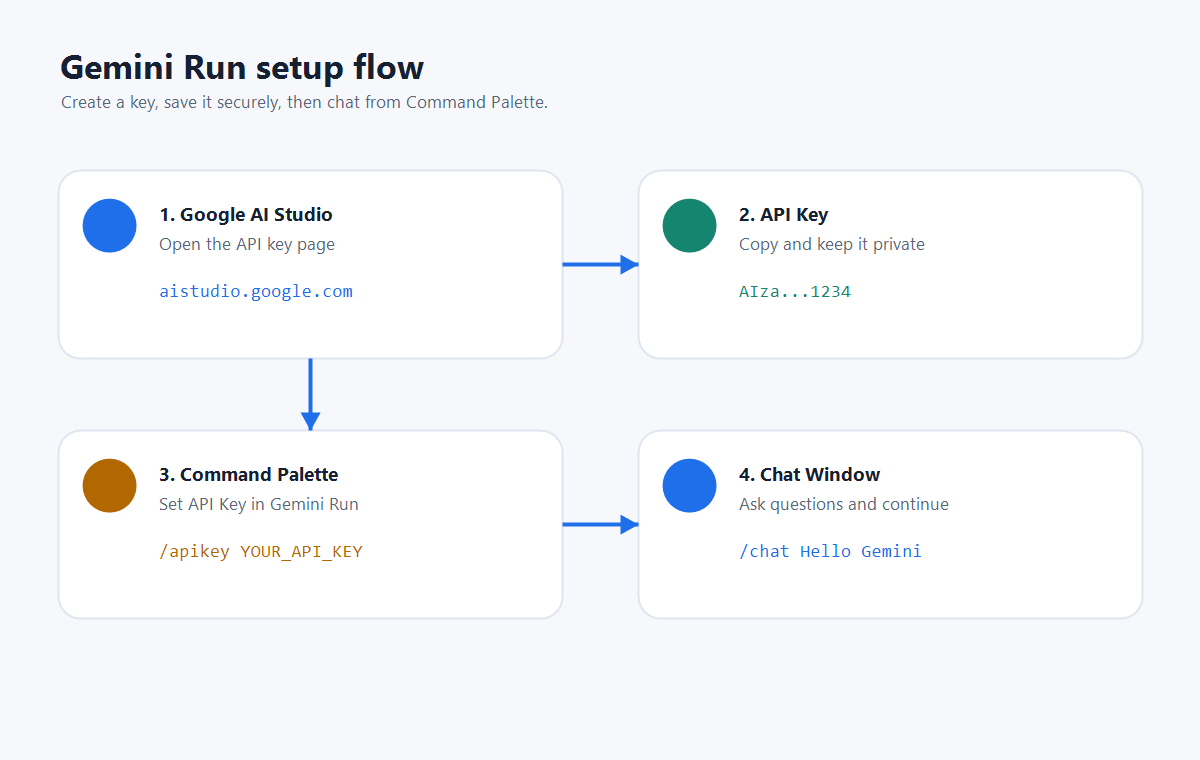
Create a Gemini API key in Google AI Studio, save it in Gemini Run, and start chatting from Command Palette.
Need
PowerToys Command Palette
Need
Google AI Studio API key
Time
About 3 minutes
Step 1
Create an API key
Step 2
Save the key in Gemini Run
- Open PowerToys Command Palette.
- Search for
Gemini Run. - Select
Set API Key. - Paste your API key.
- Click
Save.
/apikey YOUR_API_KEY
This is fast, but the key may be visible on screen. The setup window is safer for most users.
Step 3
Start chatting
Type a question in Command Palette, or use /chat. Gemini Run opens a separate chat window so you can continue the conversation after Command Palette closes.
/chat Explain Windows DPAPI in simple termsReference
Useful commands
/apikeyOpen the API key setup window./apikey YOUR_API_KEYSave an API key quickly./chat MESSAGEOpen chat and send a message./model MODEL_IDChange the Gemini model./manualOpen this manual./newStart a fresh chat window.Help
Troubleshooting
Gemini Run does not appear in Command Palette.
Run Reload Command Palette Extension in Command Palette. If it still does not appear, restart PowerToys.
API key status says not configured.
Open Gemini Run, select Set API Key, save the key again, then check API Key Status.
Gemini returns an authentication error.
Delete the saved key, create a new key in Google AI Studio, and save it again in Gemini Run.
I want to remove the saved key.
Open Gemini Run and select Remove Saved API Key.